Play Banjo-Kazooie Natively on Steam Deck
What a time to be alive! We finally have a full native PC port for Banjo-Kazooie. The project is called Banjo: Recompiled, and it uses static recompilation to translate the game code to run directly on modern hardware.
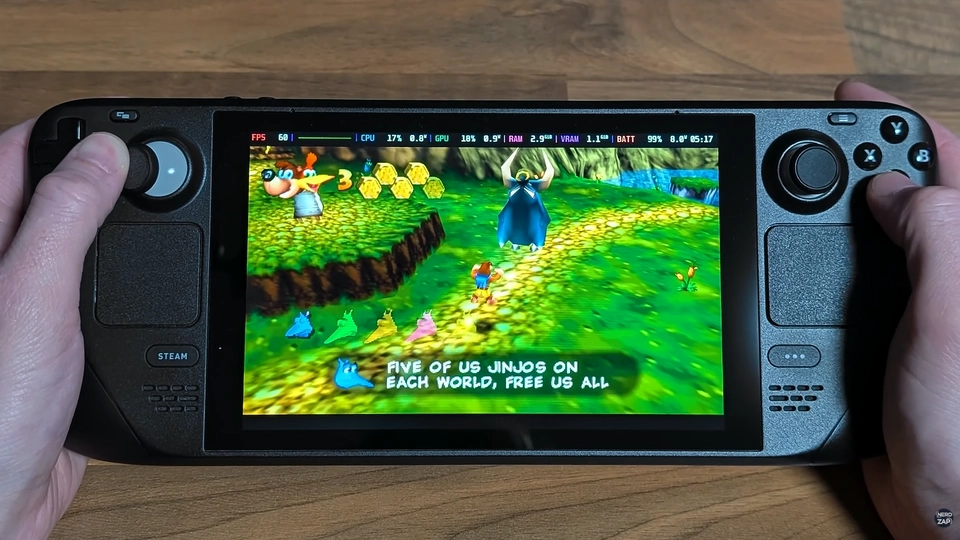
While this project is fully compatible with Windows, Linux, and macOS, I tested it thoroughly on the Steam Deck, and that is what this guide will show you how to set up. Because it runs natively instead of through emulation, you get far better performance and a massive boost to battery life—I'm talking up to 6 hours of non-stop gameplay!
⚡ Key Takeaways
- Modern Enhancements: Play at any framerate with full widescreen (and ultrawide) support without breaking the classic N64 effects.
- Dual Analog & Note Saving: Features fully integrated dual-analog camera control and a toggle to keep your notes when dying or leaving a level (just like the Xbox Live Arcade release).
- Mod Support: Easily install community-made mods and texture packs by dragging them onto the game window.
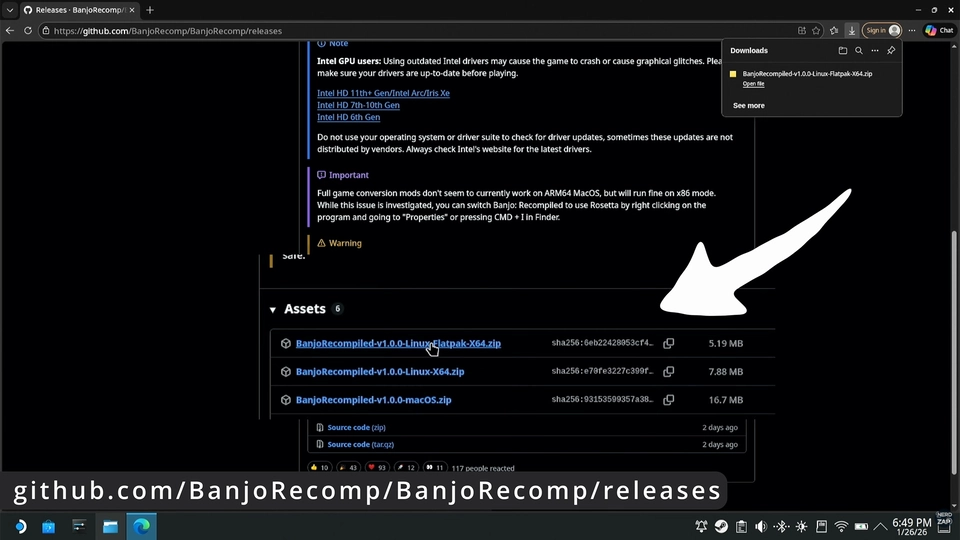
You will need the official Flatpak release from the GitHub project page:
Banjo Recompiled (GitHub)⚠️ Prerequisites: This is a port, not an emulator, and it does not include game assets. You will need to provide your own USA v1.0 N64 ROM file of the original game to complete the setup.
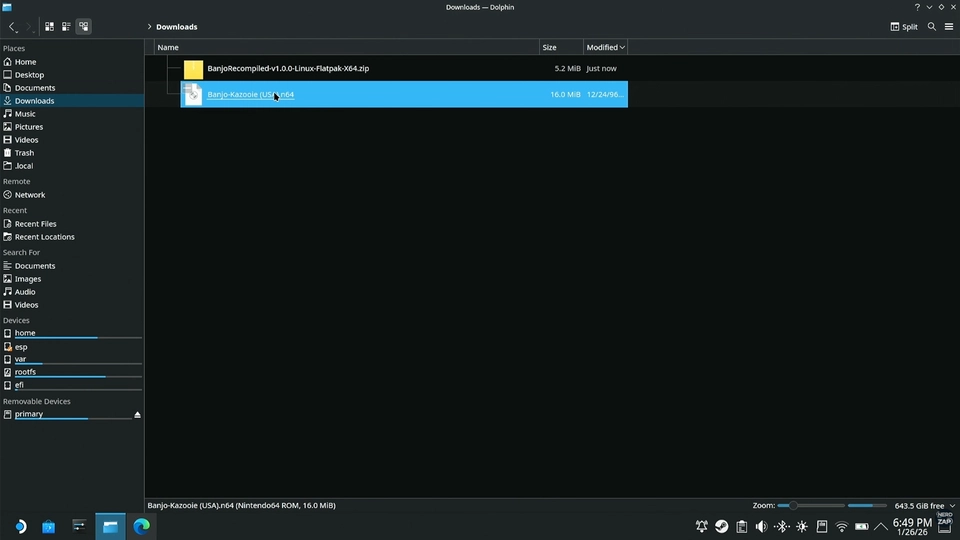
Step 1: Enter Desktop Mode & Download
The installation starts in the Steam Deck's Desktop Mode.
- Hold down the Power Button and select Switch to Desktop.
- Open your browser and download the Flatpak version of Banjo Recompiled from the GitHub releases page linked above.
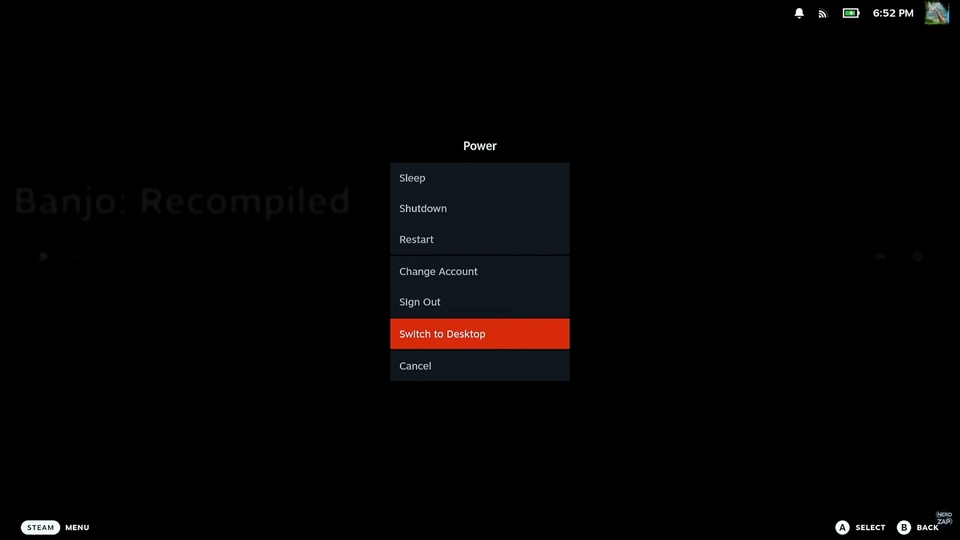
Step 2: Install the Bundle
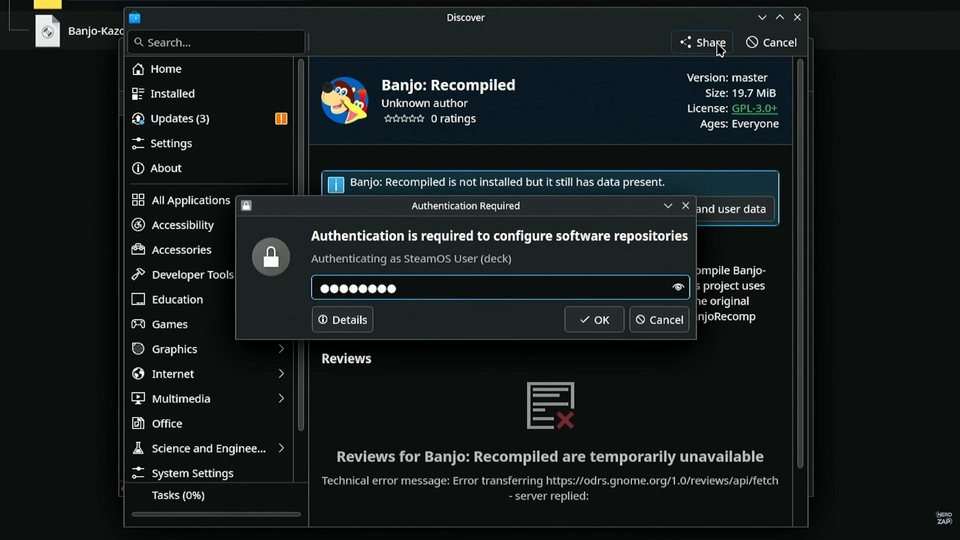
You will need your Sudo password for this step.
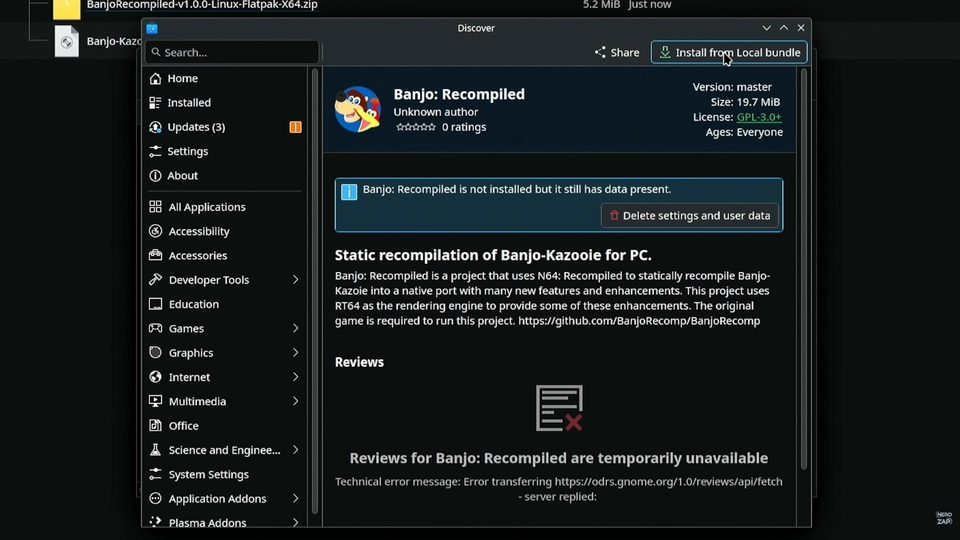
- Open the zip package you downloaded and run the file inside.
- Choose Install from local bundle.
- Enter your Sudo password when prompted. Note that it may ask you twice—this is normal!
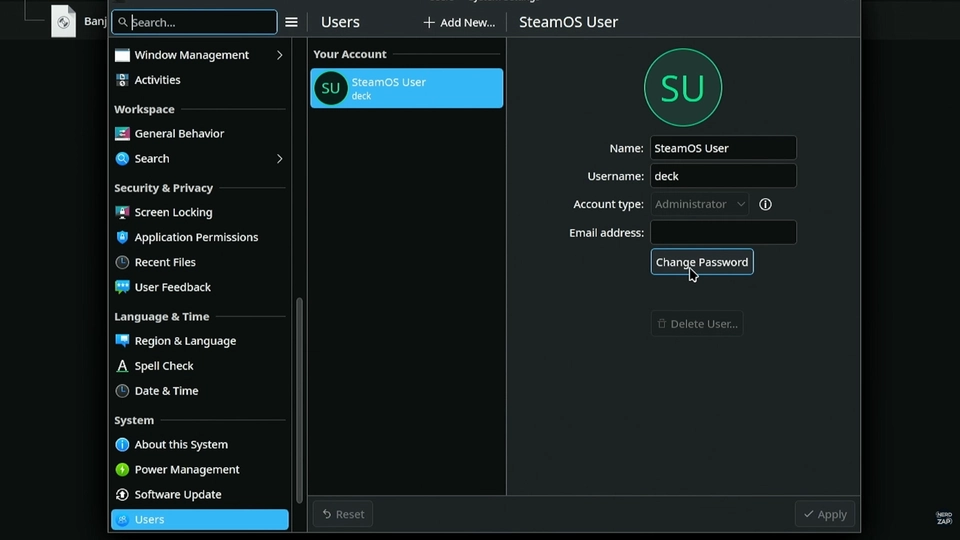
📌 Tip: If you haven't set a password yet, open Konsole and type passwd or go to System Settings > Users and choose the icon next to your username to create one.
Step 3: Add to Steam Library
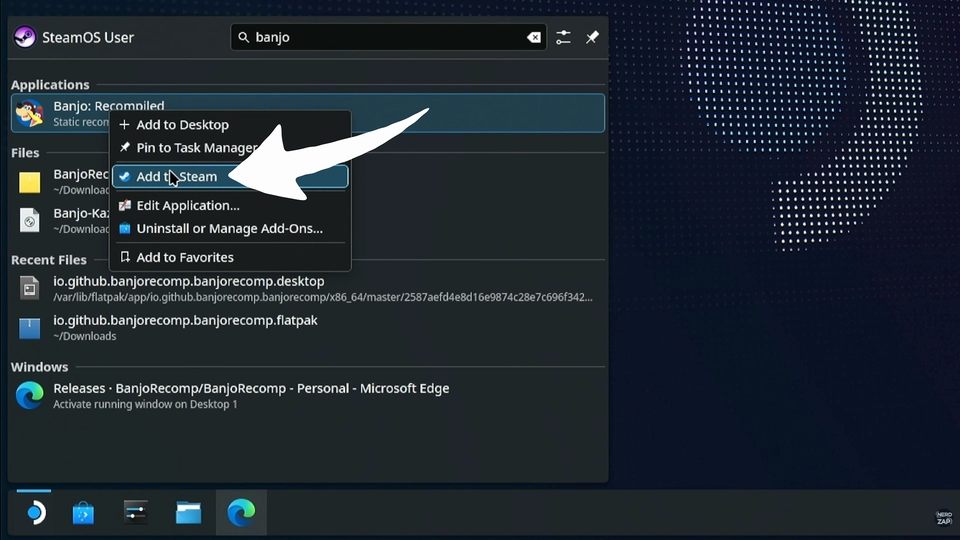
- Once installed, open the main Applications Menu on your desktop.
- Find Banjo Recompiled, right-click it, and select Add to Steam.
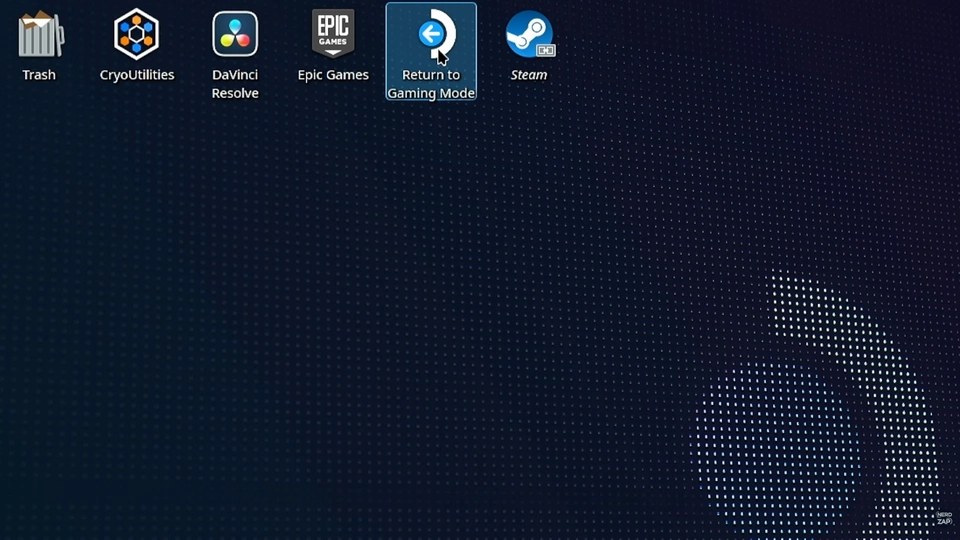
- Return to Gaming Mode using the shortcut on the desktop.
Step 4: Locate ROM & Final Setup
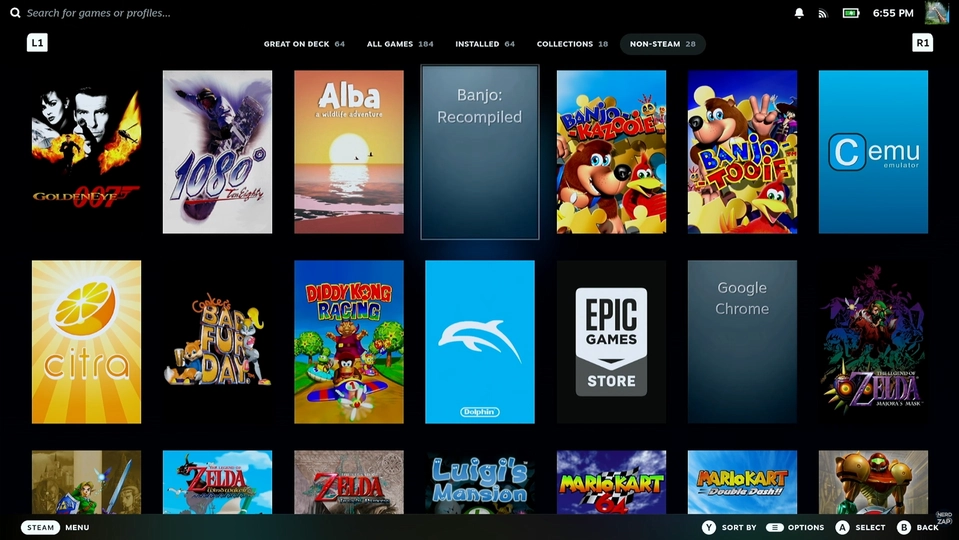
- In Gaming Mode, go to your Library > Non-Steam tab and open Banjo Recompiled.
- On the first run, the app will ask you to locate your ROM. Navigate to your downloads folder and select the USA v1.0 ROM file.
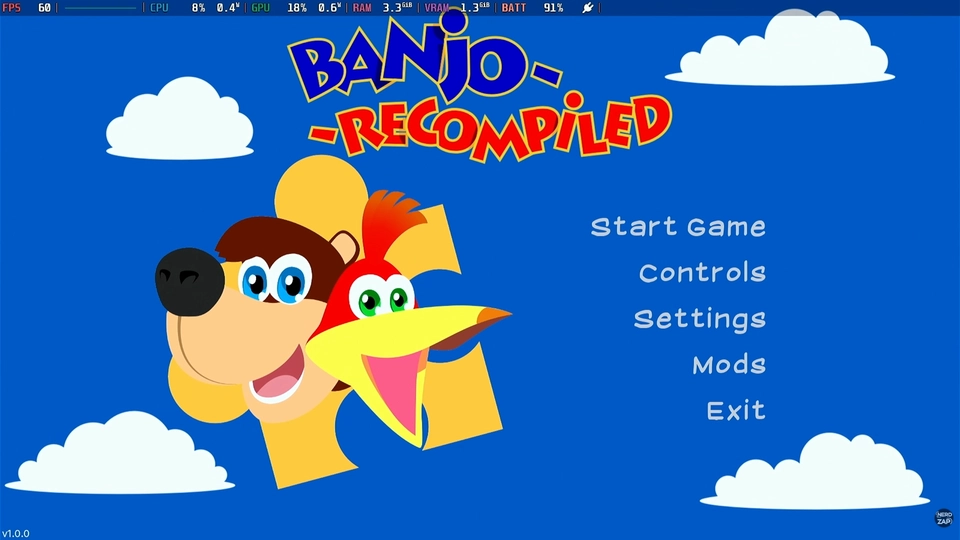
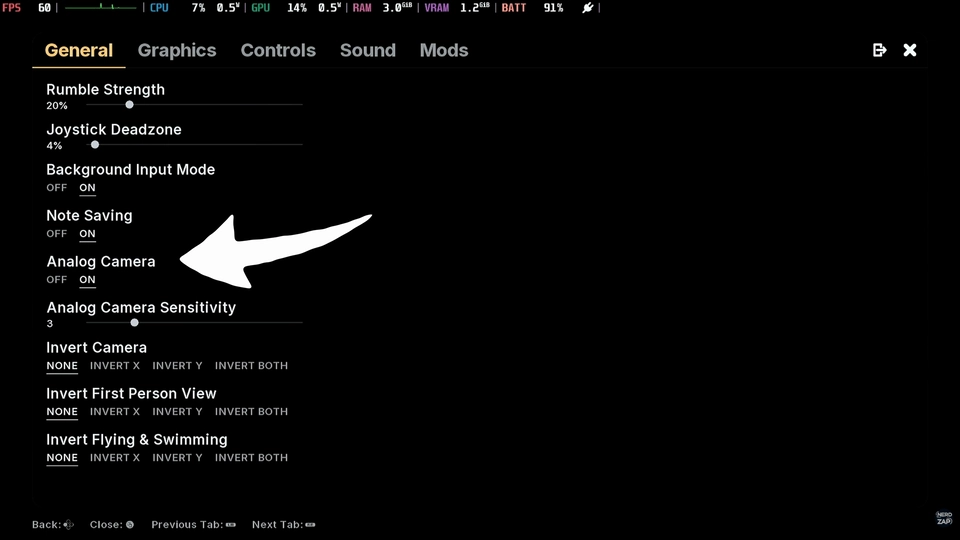
- Once in the game, press the Select button to bring up the recompile menu. I highly recommend turning on the analog camera controls and taking a look at the graphics settings to ensure you are running at your desired framerate.
💡 Pro Tip: Custom Artwork
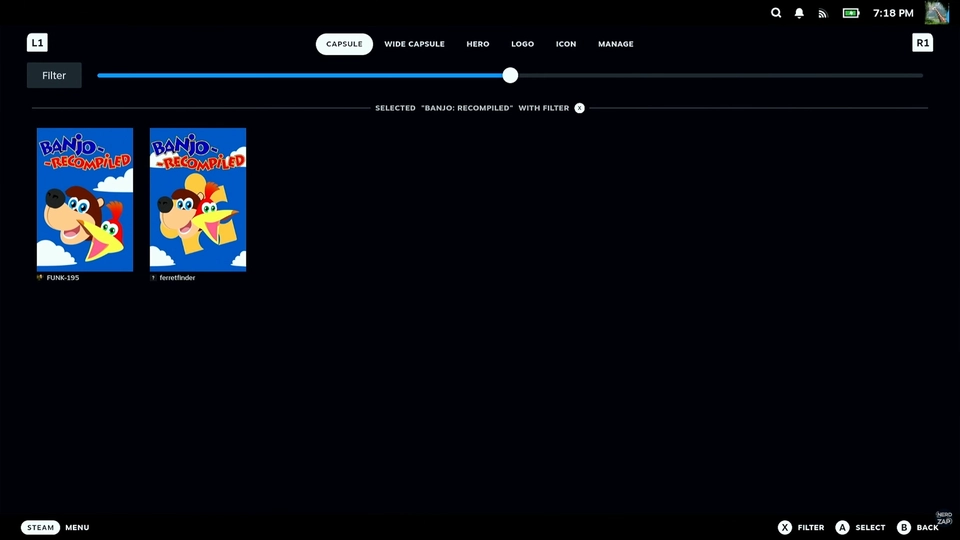
If you want your library to look professional, I recommend using the SteamGridDB Decky plugin to easily add official-looking posters and icons for the game right from Gaming Mode.
Found this guide helpful?
Support the channel to help me create more tools and guides!